By the Lovspark Product Team · Updated November 24, 2026

For architecture teams working in BIM

Revit Rendering with AI

A photoreal AI view of the scheme for the next design review, straight from the model you already have, without an overnight render or a plugin.

Rendering in Revit usually means checking every material's appearance, setting sun or artificial lights and exposure, then waiting while Autodesk Raytracer works on the CPU, or moving the model into Enscape, V-Ray or Twinmotion and fixing what the sync breaks. For a concept view, export the 3D view as an image instead. Lovspark AI keeps the walls, floors, openings and camera and adds brick, glass, timber, sky and street, and it works the same in the LT edition, which cannot render locally at all.

200 free credits every month · 30 credits per run · No install needed · Saved to your Lovspark account · Open in Lovspark

Upload an exported view

Exported 3D View
No image handy? Try these:
Material PhotoOptional
Revit Rendering with AI – original imageRevit Rendering with AI – generated result
Example result

Three steps from the model to an AI render

  1. Set up the 3D view

    Place a camera from the View tab, choose Shaded or Consistent Colors, and in Graphic Display Options turn on edges, cast shadows and ambient shadows so depth reads clearly.

  2. Photograph the material board

    Lay out the brick, panel and timber samples you are proposing and take a photo. Lovspark follows those finishes instead of the model's material appearances.

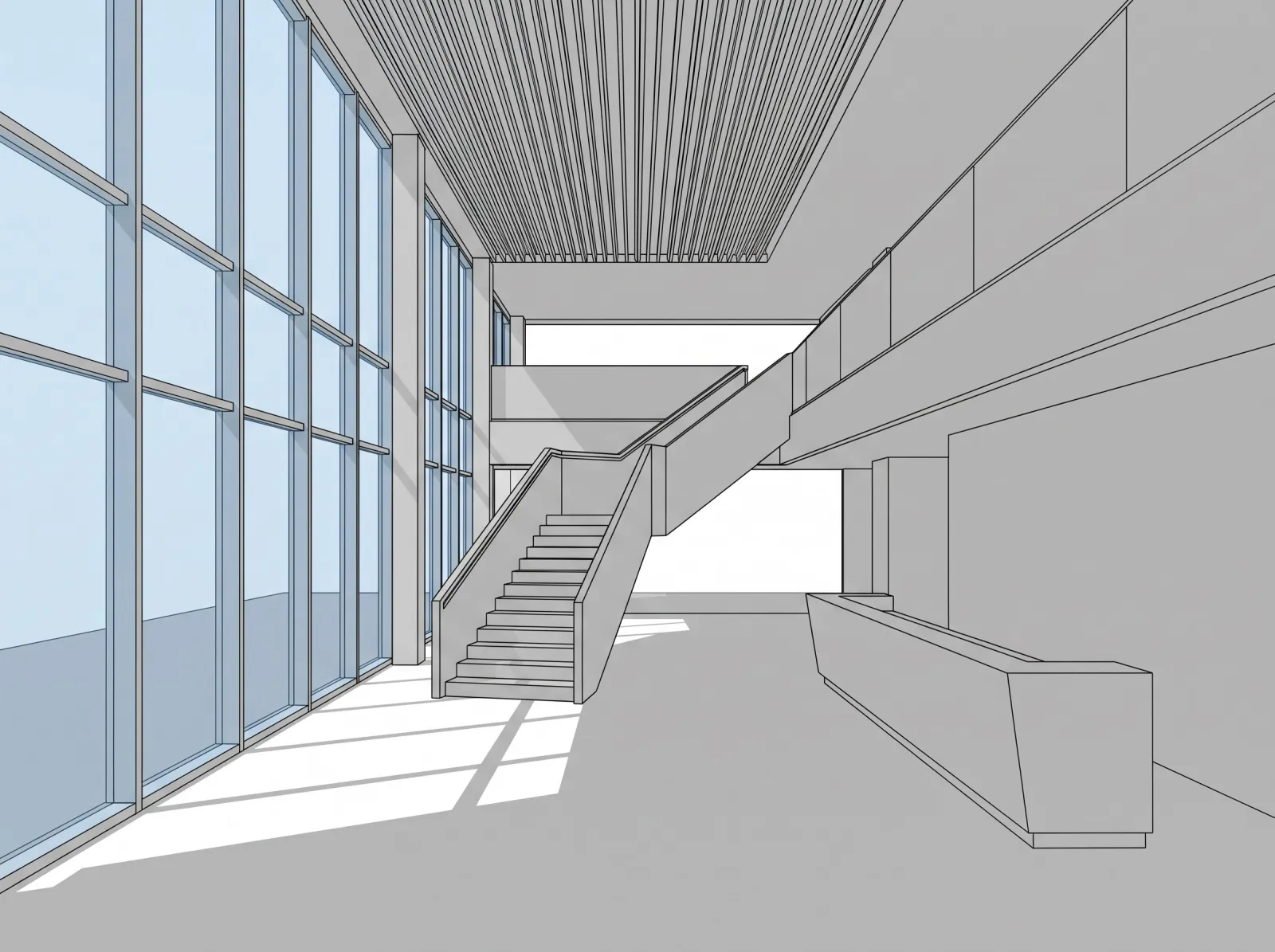
  3. Export the image and upload it

    Use File > Export > Images and Animations > Image, export the visible portion of the window and fit it to 2,000 pixels or more. Upload the PNG and the finished image comes back while you are still in the meeting room.

Offices, housing and civic buildings, rendered with AI

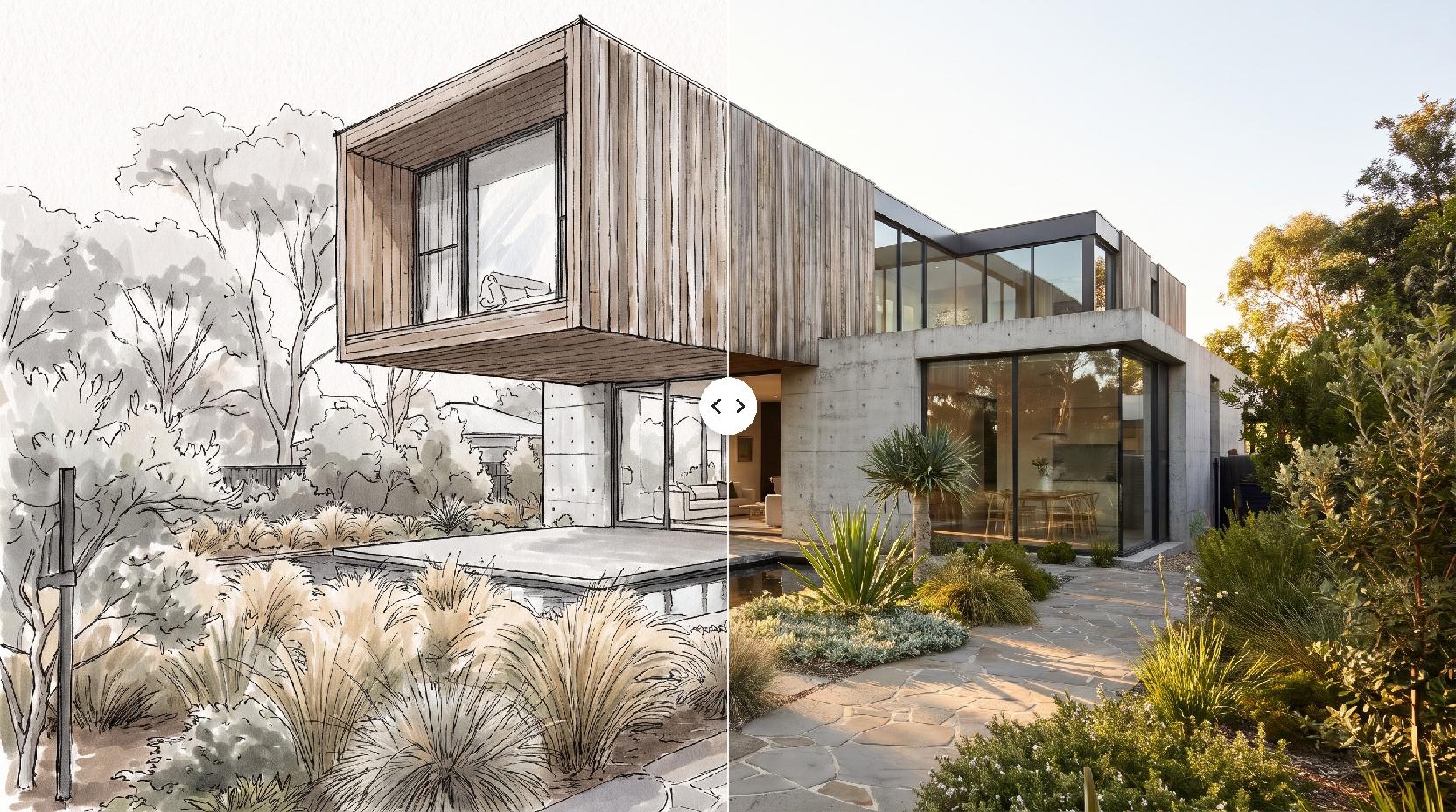
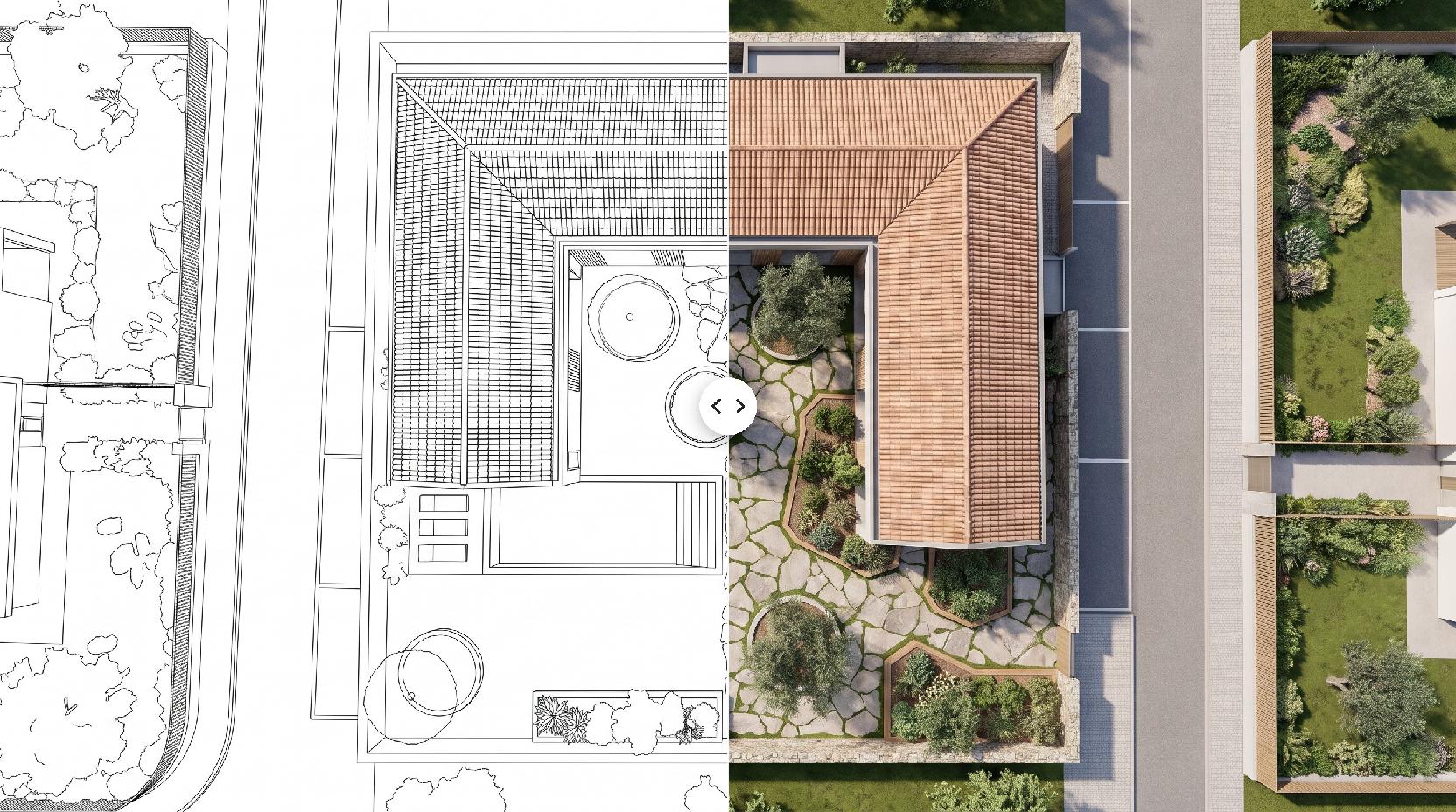
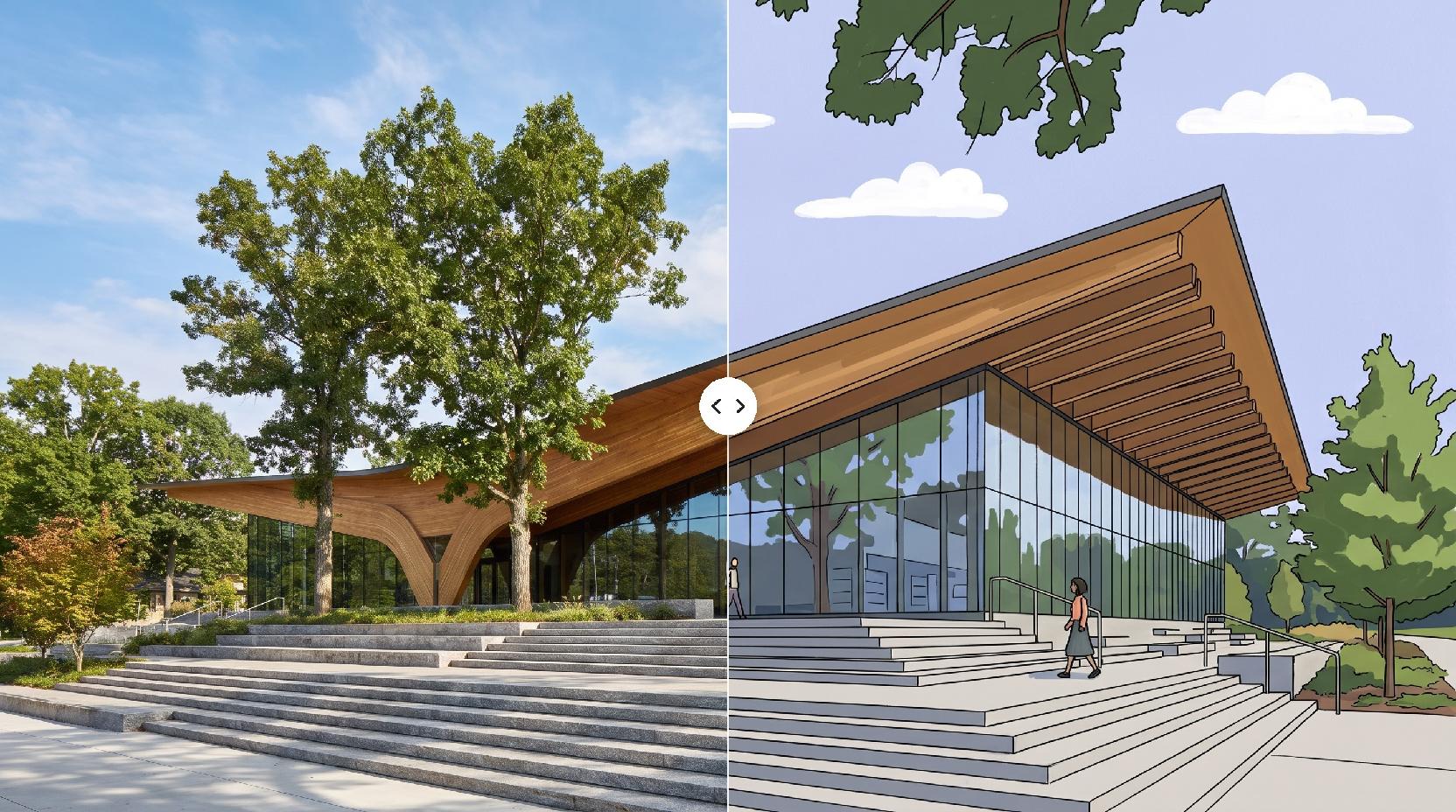
Drag the line to compare · click to enlarge

Courtyard apartments

A four-story apartment block gets fiber cement panels, black windows and a planted courtyard; balconies and roof lines stay as modeled.

Fire station

Brick walls and red apparatus doors turn a civic massing model into a believable street view for a community meeting.

Corporate headquarters

The curtain wall softly reflects the sky and the forecourt fills with grasses and young oaks, while the plinth keeps the modeled outline.

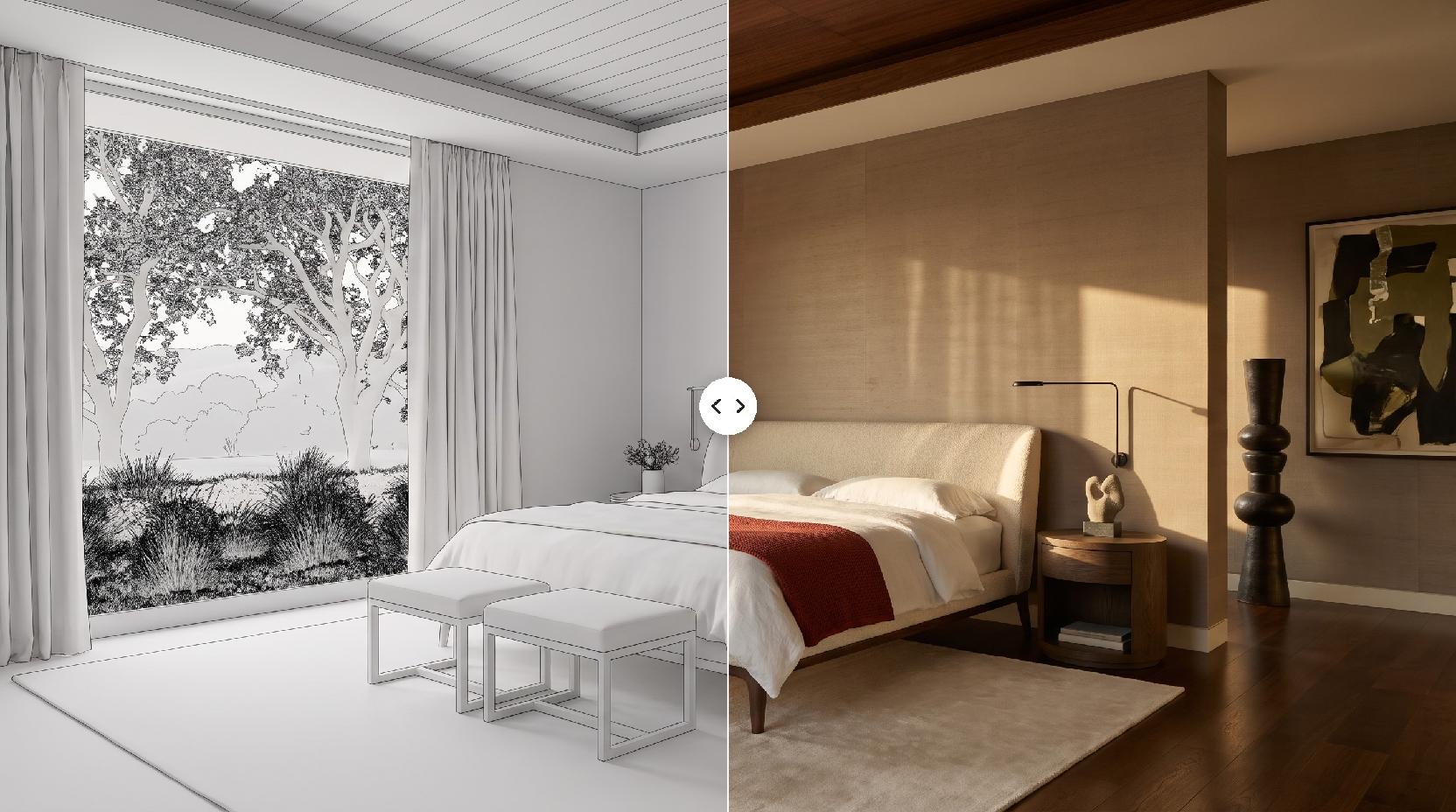
Hotel lobby interior

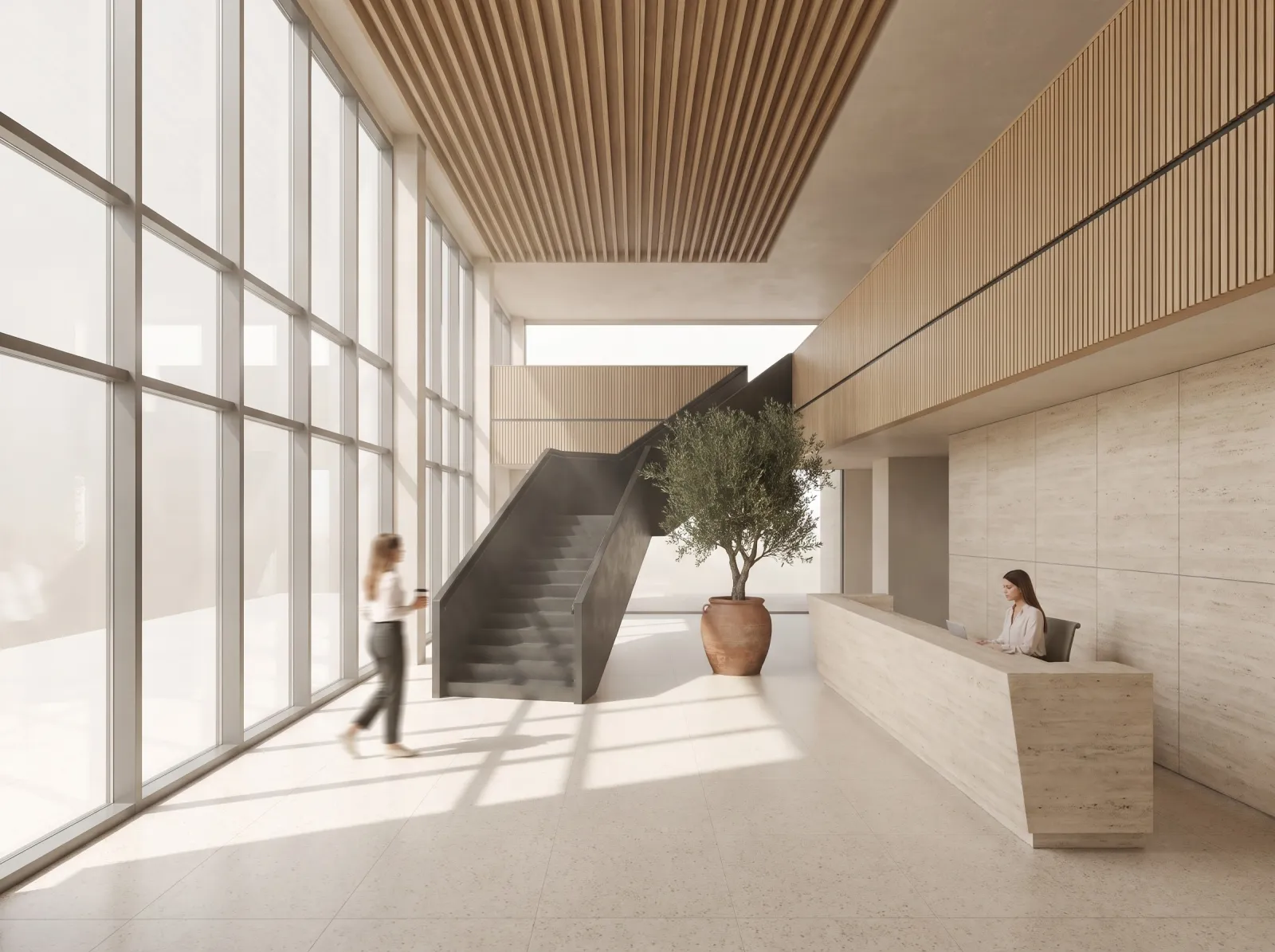
An interior camera view becomes a warm lobby with a walnut bar, velvet seating and a limestone fireplace wall.

What you no longer wait for

Compared onNative Raytracer or a render pluginLovspark AI from an exported view
MaterialsCheck each material's appearance and texture pathA material board photo or a sentence
LightingSun or artificial lights, exposure, re-render after changesDescribed in a sentence
Time per viewCPU rendering, often hours for a detailed modelAbout a minute
LT versionNo local rendering; cloud onlyWorks the same as the full version

Who renders BIM models with Lovspark AI

Revit rendering: the native renderer, the plugins and AI

What it takes to render inside the BIM model, how the popular plugins connect, why renders go grey or slow, and where an AI render fits.

  1. The built-in Autodesk Raytracer
  2. Why native renders come out grey or slow
  3. How the common plugins connect
  4. What the AI skips, and what it does not
  5. Getting a clean export

The built-in Autodesk Raytracer

The built-in renderer is Autodesk Raytracer. You pick a region, a quality level from Draft to Best or Custom, an output resolution, a lighting scheme with sun or artificial lights, a background and an exposure, and the settings are stored with the view. Changing the exposure means rendering again, and the Ray Trace visual style only saves images at screen resolution.

Why native renders come out grey or slow

  • Rendering runs on the CPU; on the Autodesk forum one user reports the same model taking 1.5 to 2 hours in the 2015 release and 4 to 5 hours in 2018.
  • More artificial lights, glass and reflections add time, and so does a higher DPI.
  • A model that renders all grey usually has the view's phase filter set wrong; Show Complete fixes it.
  • Missing textures usually mean a broken additional render appearance path.

How the common plugins connect

  • Enscape: a ribbon tab that renders the active 3D view in real time; some material types must be duplicated as Generic before they can be edited.
  • V-Ray: renders inside the model; GPU mode needs an NVIDIA card that holds the whole scene in memory.
  • Twinmotion: View > Twinmotion > Open in Twinmotion from the 2023.1 release, synced through Direct Link; forum threads report materials arriving white.
  • Lumion LiveSync: plays a perspective view into Lumion; it does not support the LT edition.
  • D5 Sync: a one-way, manual sync from the model to D5 Render.

What the AI skips, and what it does not

An exported Shaded or Hidden Line view replaces the render settings, the wait, the material appearances and the plugin. You still model the building, place the camera and export the view, and the AI does not calculate light from the model's real materials or sun position, so use it for design communication rather than lighting studies or construction documents.

Getting a clean export

Hide section boxes, grids, levels and annotations first. In the Image export dialog, choose the visible portion of the current window and Fit To 2,000 to 3,000 pixels. Avoid Realistic with placeholder materials, since odd textures can carry into the render.
FAQ

Revit Rendering with AI FAQ

01/What is Revit AI rendering?

It means exporting a view from your model and letting AI finish it. The walls, openings and camera come from the model; brick, glass, sky and street come from Lovspark, guided by a sentence or a photo of your material board.

02/Can Revit LT render?

Not locally: the LT edition has no local rendering and no Ray Trace visual style, and Autodesk points LT users to cloud rendering. It can still export a 3D view as an image, and Lovspark renders that image exactly as it would one from the full version.

03/Why is my Revit render all grey?

It is usually the view's phase filter; setting it to Show Complete brings the materials back. Lovspark does not use those materials, so the exported view only needs to show the form clearly.

04/How do I export an image from the model?

Use File > Export > Images and Animations > Image, choose the visible portion of the current window, set Fit To 2,000 pixels or more and save as PNG.

05/Which visual style should I export?

Shaded or Consistent Colors, with edges and ambient shadows on in Graphic Display Options. Hidden Line works for simple buildings.

06/Is Revit rendering with AI free?

Yes. A free Lovspark account comes with 200 credits each month, and one AI render of an exported view uses 30 credits. Images made on the free plan have a watermark and are for personal use; any paid plan lifts the watermark and adds commercial rights.

07/Do I still need Enscape or V-Ray?

For real-time walkthroughs, animation and lighting you need to match the model exactly, yes. For early options and design reviews, a Lovspark render from one exported view is faster and needs no plugin or graphics card.

Guides and tips

More AI design skills

Browse all skills

Revit Rendering with AI

The next design review does not have to wait for Raytracer. Export the 3D view, upload it, and walk in with a finished image.

27 AI design skills · 15 image and video models