How the AI paint visualizer works
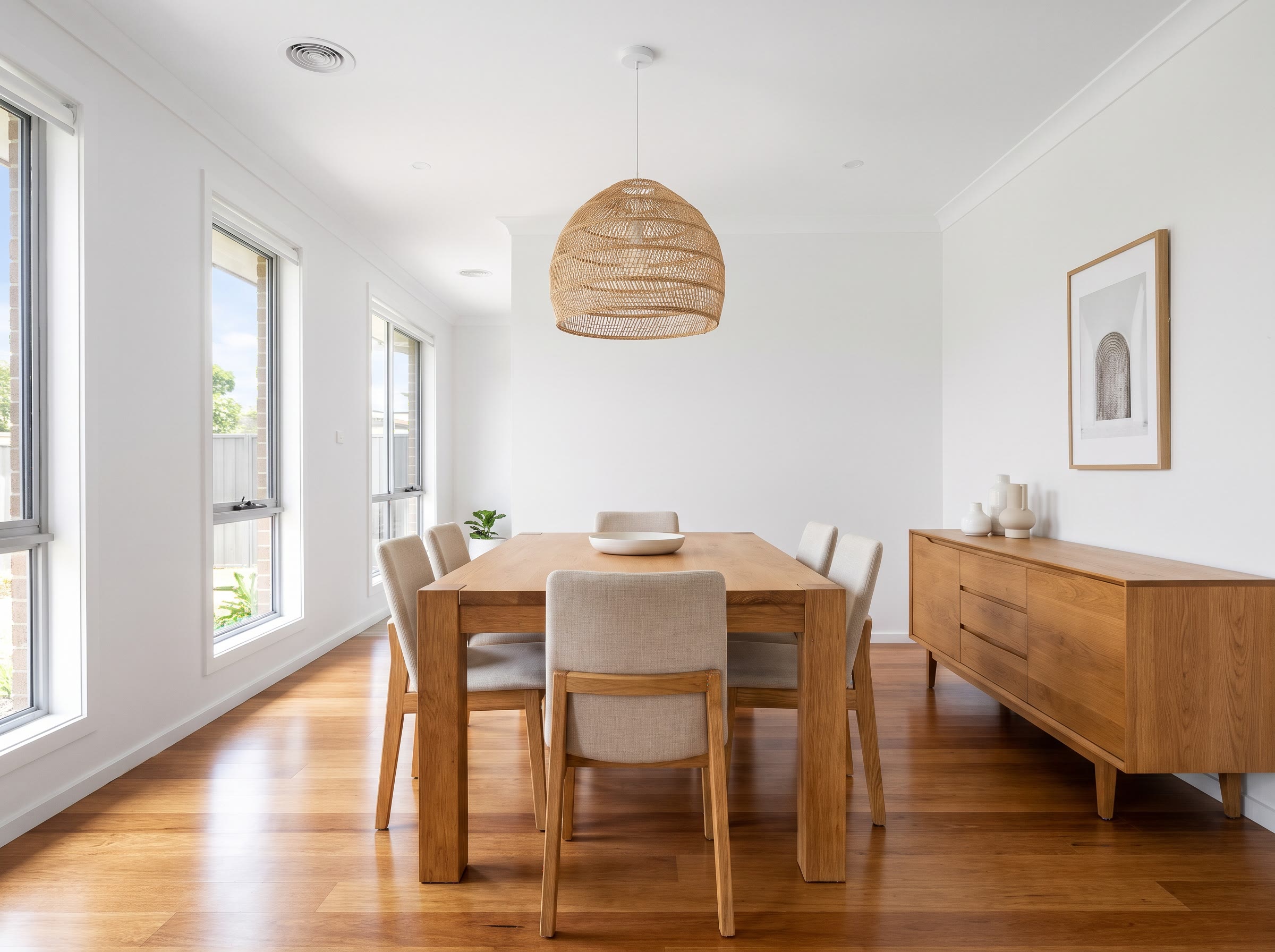
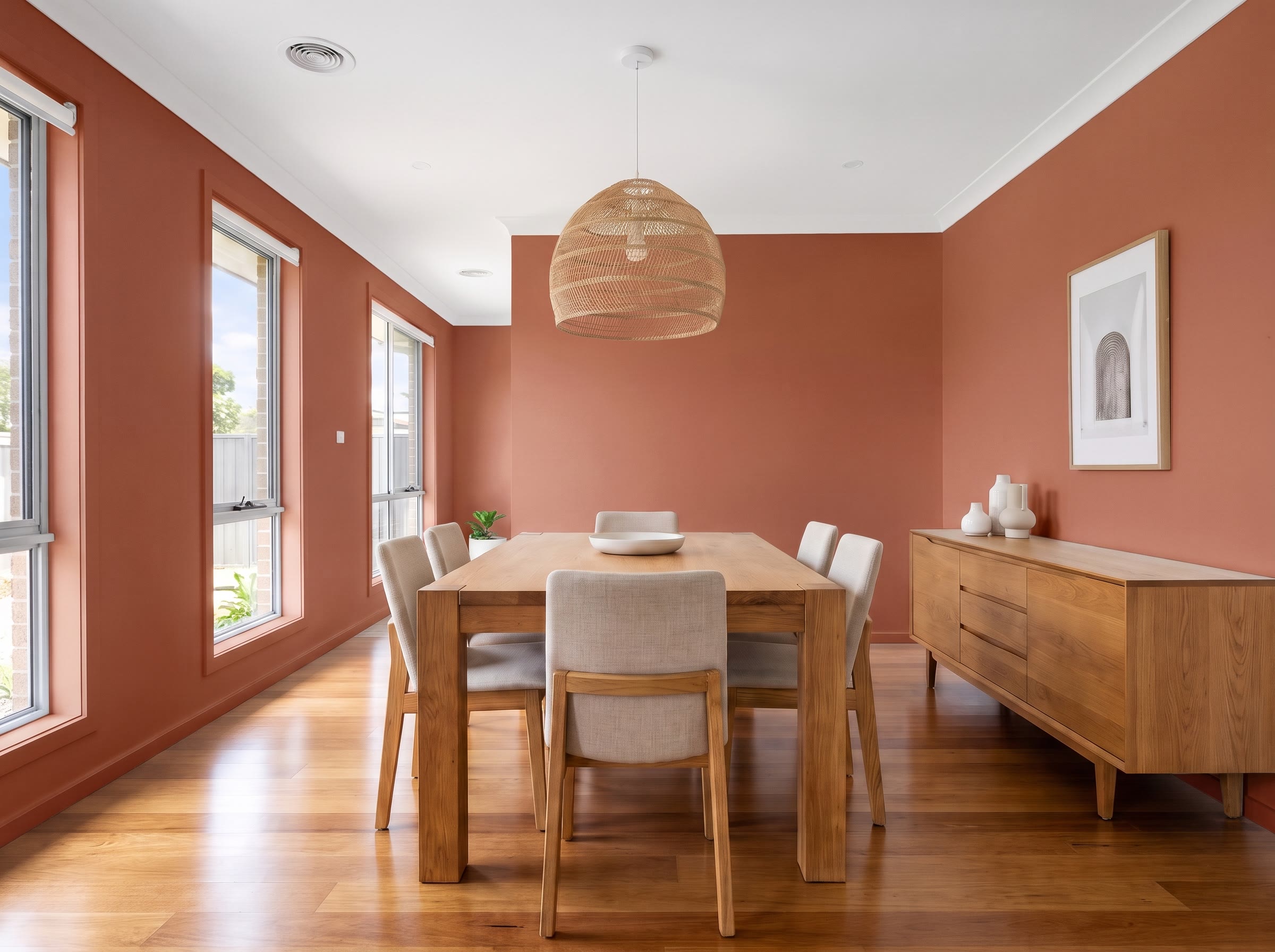
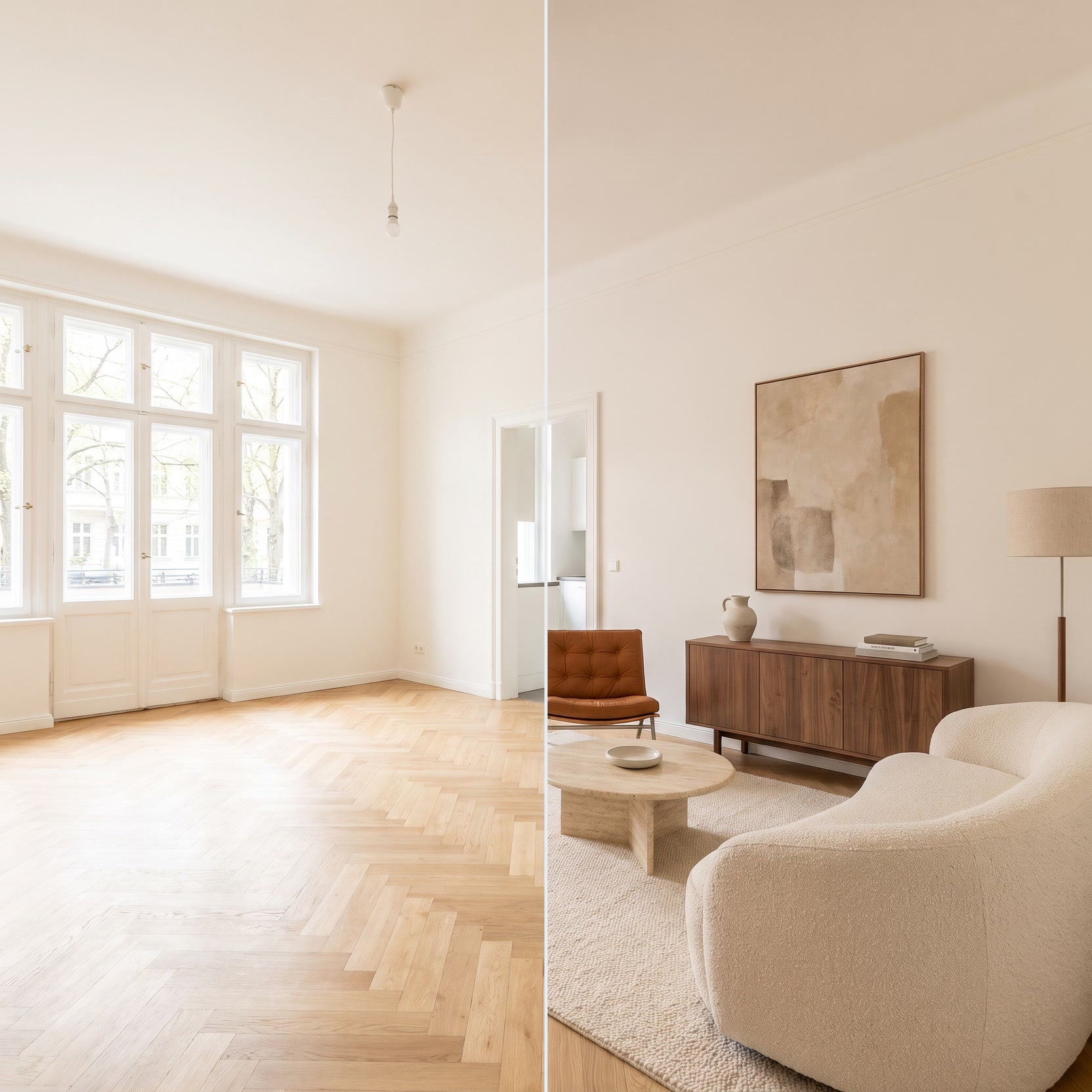
You mark the surfaces, give one material per marker, and Lovspark AI replaces only those areas. Everything outside the markers, including furniture, light and shadows, stays as photographed.
You can mark up to seven areas in one run and upload the materials in the same order as the markers, so a wall color, a floor and a countertop can change together.
Get accurate paint colors
A screen never shows color exactly as it looks on a wall, so use the paint visualizer to narrow choices and a sample pot to decide.
- Photograph a physical color chip in daylight, or use the brand’s color image.
- Keep the room photo’s light close to how you use the room.
- Compare two or three close shades side by side rather than one at a time.
- Brush on a sample patch before you order, especially for dark or saturated colors.
Exterior paint ideas
Used as an exterior paint color visualizer, mark body, trim, door and shutters as separate areas so the AI can test combinations. Keep the roof, brick or stone in mind, because they will stay the same, and check any HOA or local rules before choosing a bold color.
Floors, tiles and countertops
Give the AI a close-up sample photo with readable grain or veining, shot straight on. Keep the scale plausible: oversized tiles or wood grain on a small floor make the result look artificial.
Cabinets and furniture
As a kitchen cabinet color visualizer, mark cabinet doors and frames but leave handles and countertops out if you want to keep them. For sofas and chairs, a flat fabric swatch with visible texture gives the most natural upholstery.
Common mistakes
Most poor results come from the markers or the sample. Check these before you run it again.
- Soft or hidden edges between surfaces, which let materials bleed.
- A blurry, tiny or heavily lit material photo.
- Material scale far from the real product.
- Marking a whole room when only one surface should change.
Before you upload
Check these four things; a minute here saves a wasted run.
- Use a sharp photo at least 1600 px wide, in even light.
- Mark surfaces with clear boundaries, one marker per material.
- Upload materials in the same order as the markers.
- Crop watermarks and text out of material photos.