Image and video generation
The Image Generator takes up to 8 reference images plus a prompt and follows their style, materials and composition. The Video Generator can lock the first and last frames.
Image Generator · Video Generator
Chain source photos, crops, style references and generation as nodes on the Lovspark canvas. Change anything upstream and everything downstream re-runs — every step from photo to final render stays in view.
A complete Node Canvas session — from uploading the source photo and wiring nodes to running them.
Input, generation, refinement and organization nodes wire together by port type — images into image ports, text into prompt ports. A connection that doesn’t fit is simply refused.
The Image Generator takes up to 8 reference images plus a prompt and follows their style, materials and composition. The Video Generator can lock the first and last frames.
Image Generator · Video GeneratorUpload photos and videos, or drag product images in from your library. Image Iterator brings in a whole set at once, and a 3D Scene node turns a floor plan into a space you can orbit and snapshot as a composition reference.
Image Upload · Video Upload · Image Iterator · 3D SceneSet the composition with Crop before you generate, then upscale the result for print or client delivery.
Crop · UpscaleA Text node polishes copy or describes an image to your instructions, and Merge Text joins several prompts into one before generation.
Text · Merge TextPull any frame out of a video into the image chain, or join several clips into one with Video Edit.
Extract Video Frame · Video EditGroup a stretch of the flow inside a Frame and leave Sticky notes for the team. Select several nodes and pack them into one skill, or save the whole board as a workflow template.
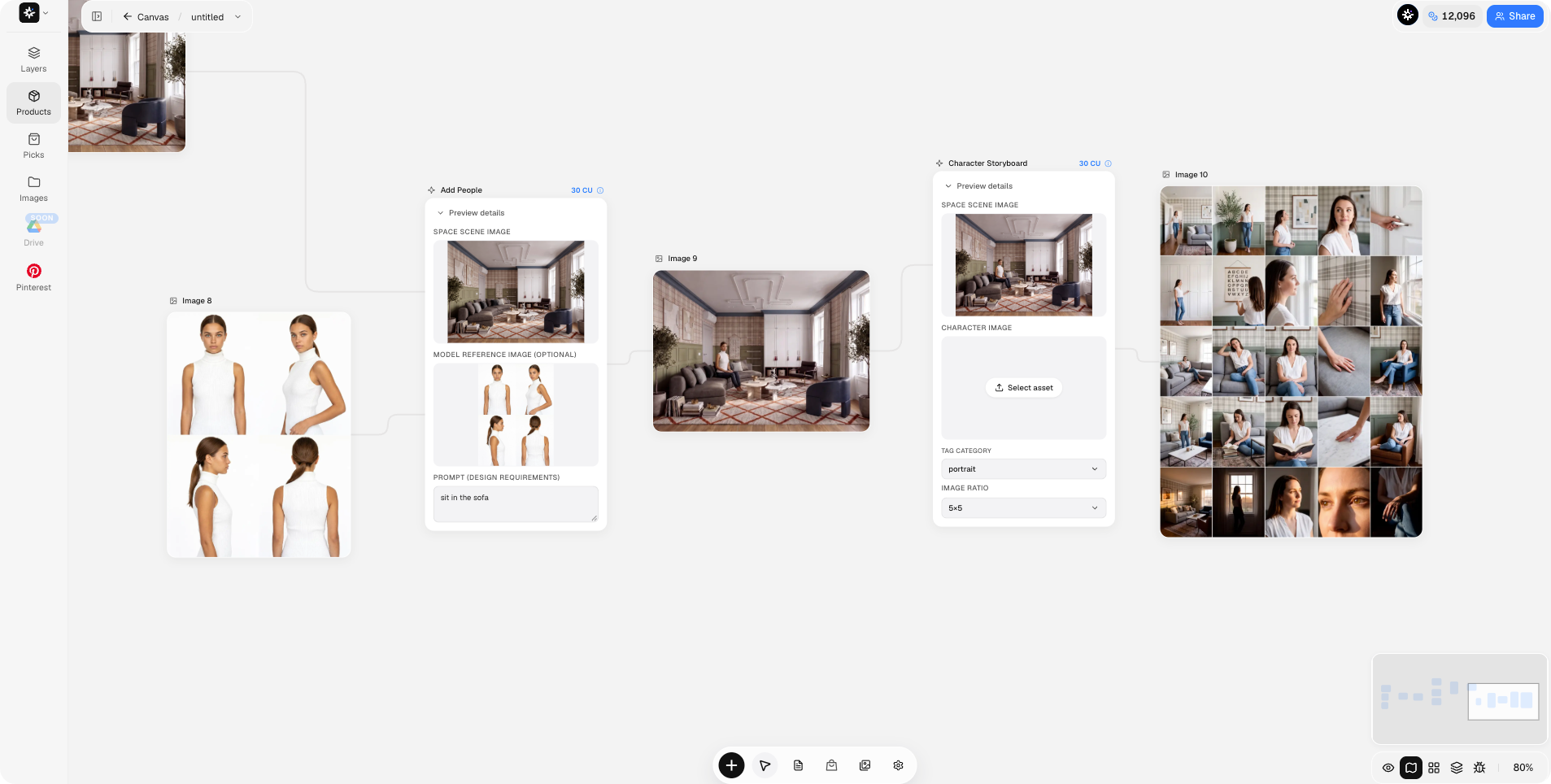
Frame · Sticky note · Packed Skill · Skill CardA real Node Canvas project: the first frame swaps new furniture into a room, the next adds people and turns the result into a character storyboard. Every input, setting and result stays on the board.
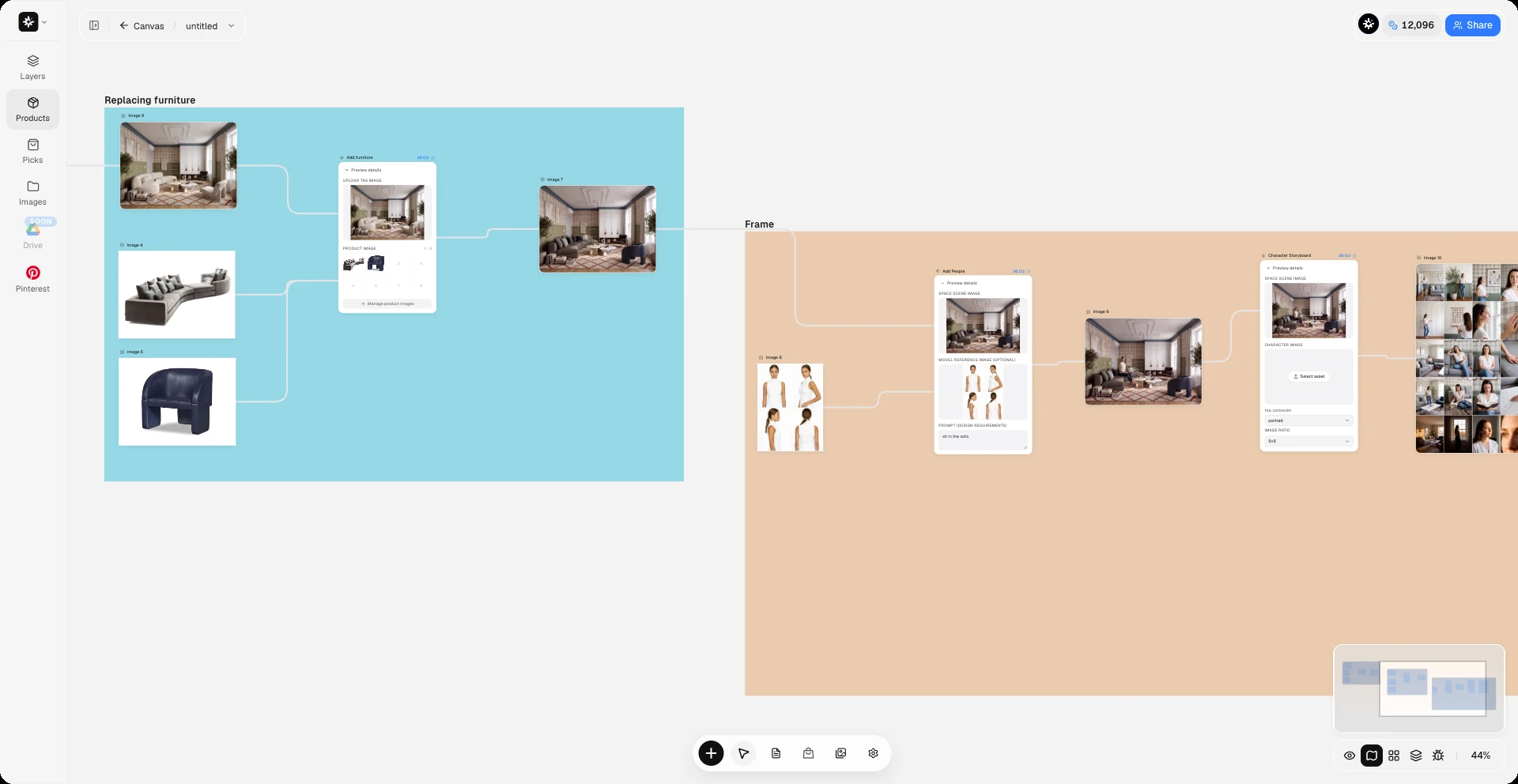
Color-coded frames group each stage, so a long flow stays readable.
Add Furniture and Add People each run as one node, with their inputs and credit cost shown up front.
The minimap shows where you are on a large board; zoom out to see every stage at once.
Each card is a real node chain — what goes in, which nodes it passes through, and what comes out. Drag to browse, then open one on your own canvas.
Crop the source photo to the composition you want, connect two style references, and the Image Generator follows their materials and tones. Swap a reference and re-run only the generation step.
An empty room photo plus a product cut-out becomes a complete furnishing plan that keeps the original finishes and daylight.
Branch one image into two Image Generators with different prompts — here, two finish schemes for the same kitchen — and compare them side by side on one canvas.
Feed a daytime facade photo and a short lighting prompt into the Image Generator, then upscale the dusk version for the presentation board.
Lock a finished render as the first frame of the Video Generator for a slow camera move, then trim and join the clips in Video Edit.
Add People places a model into the finished room, and Character Storyboard turns that scene into a set of portrait shots for the brand deck.
Bring in a set of references with Image Iterator, merge the brief into one prompt, generate concepts, then pack the chain into a skill your team can reuse.
Official and team-built workflows live in the Skill marketplace. Drag one onto the canvas, swap in your photo, and run it.
Everyday flows such as white-model rendering, raw-room design and soft-furnishing styling are already built and tuned.
Package a few canvas nodes into a skill and publish it to your team — teammates simply drag it in.
A skill on the canvas still connects upstream and downstream, and you can double-click it to edit the steps inside.
Open a Flow project in the browser or the desktop app — no install or node setup needed.
Upload photos or video, drag products in from your library, or right-click the canvas to add any node.
Drag from an output port to an input port. Ports check data types, so an image never lands in a prompt slot.
Run a single node or let changes flow downstream. Every intermediate result stays in its own node for review.
Pack the nodes into a skill or save the board as a workflow template, then swap the source photo next time.
Switch between both modes in the same project — assets and generation history are shared.
| Free canvas | Node canvas | |
|---|---|---|
| Best for | Exploring ideas, laying out boards and marking up images | Fixed processes you run again and again |
| When the source changes | Redo every later step by hand | Downstream nodes re-run with their saved settings |
| Intermediate results | Scattered across the board | Kept in their own nodes and re-runnable one by one |
| Multiple options | Generate again and again manually | Branch one image into parallel paths |
| Reuse | Copy and paste images | Workflow templates and packed skills |
| Assets and history | Shared within the project | Shared within the project |
It is a node-based mode of the Lovspark canvas for interior designers and architects. Each step — source photo, crop, style reference, generation, upscale — is a node, and connecting the nodes turns the steps into a workflow you can re-run and reuse.
The free canvas suits open-ended exploration and markup. The Node Canvas suits repeatable processes: results stay in their nodes, changes flow downstream, and the whole flow can be saved as a template. Both modes share assets and generation history within a project.
An Image Generator node accepts up to 8 reference images plus a prompt from a Text node. A Video Generator can also take a first and last frame.
Yes. Upload video, generate video from images and prompts, extract any frame back into the image chain, and join clips with the Video Edit node.
Yes. Drag an official or team skill from the Skill marketplace onto the canvas, open a workflow template, or pack your own nodes into a skill for the team.
You can start for free in the browser or the macOS and Windows desktop apps. Generation nodes show the credits each run uses before you run them.