
What is One-Click Render 2.0 — Soft Furnishing Collage?
Direct answerOne-Click Render 2.0 — Soft Furnishing Collage turns a soft-furnishing collage into an interior render, carrying its selected furniture, materials, and colours into a coherent spatial image.
It is useful when the soft-furnishing direction is decided in a collage but still needs to be shown as a convincing room image.
Build a collage that makes the core furniture, material samples, colours, and intended room character visible. The collage becomes the visual direction for the render.
The generated room image appears on the canvas, ready for review, proposal layouts, or further adjustment.
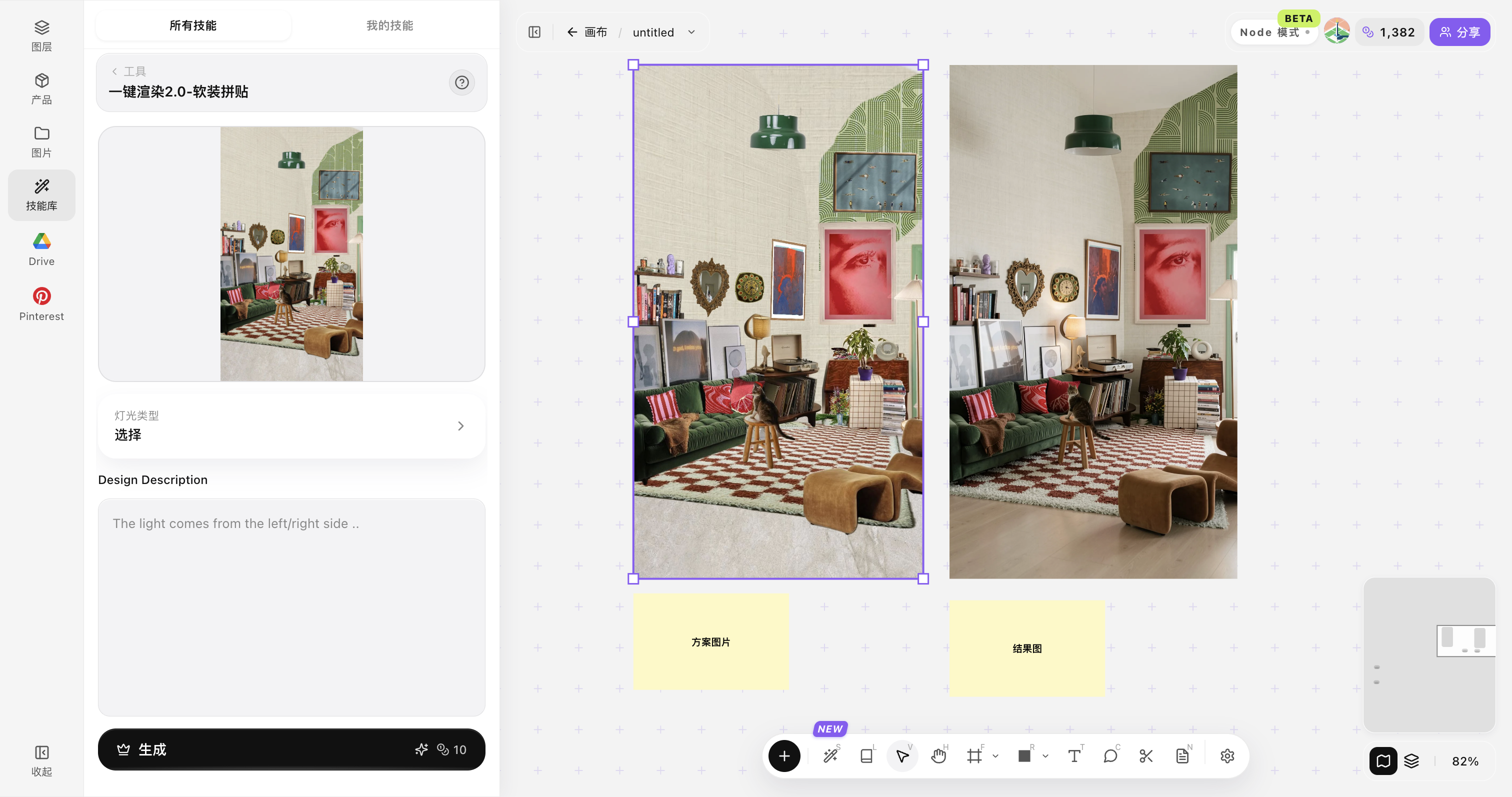
| Input | 1 soft-furnishing collage |
|---|---|
| Visual direction | Furniture, materials, and colours shown in the collage |
| Output | 1 cohesive interior render |
| Focus | Furniture, colour, and material relationships |
| Best for | Soft-furnishing proposals and interior direction studies |
- A collage with clear primary furniture
- Visible material and colour samples
- One coherent room character
Updated by the Lovspark Product Team, based on the live product and real project examples.
Sources: Lovspark product documentation · Lovspark Academy
One-Click Render 2.0 — Soft Furnishing Collage feature panel
Choose One-Click Render 2.0 — Soft Furnishing Collage, upload the collage, select the output ratio, then generate a cohesive interior render.
Keep the key furniture and material relationships visible in the collage. A clear colour direction gives the render a more unified result.
How to use One-Click Render 2.0 — Soft Furnishing Collage
Follow four steps from a soft-furnishing collage to a presentation-ready interior render.
Open Skills library and choose One-Click Render 2.0 — Soft Furnishing Collage
Open Skills library, then choose One-Click Render 2.0 — Soft Furnishing Collage from the skill list to start this workflow.
Upload the soft-furnishing collage
Upload a collage that clearly shows the main furniture, material samples, and colour direction you want to carry into the room.
Select the output ratio
Choose the framing that fits the board, presentation, or channel where the final render will be used.
Generate the interior render
Click Generate and review the result on the canvas. Check that the selected furniture, material, and colour relationships read as one coherent interior.
Tips for better One-Click Render 2.0 — Soft Furnishing Collage results
The collage should communicate one coherent soft-furnishing direction instead of several competing styles.
Make the main furniture unmistakable
Use large, readable cut-outs for the pieces that define the room instead of filling the collage with many small objects.
Keep one colour direction
Choose colours that belong to the same intended atmosphere so the render does not need to reconcile conflicting palettes.
Show material relationships
Include the key fabrics, timber, stone, or metal finishes when they are central to the desired result.
Leave out alternatives
Use one choice for each important furniture type; multiple competing sofas or finishes make the intended direction less clear.
Check the design intent in the result
Before using the image in a proposal, confirm that its key furniture, colours, and material character match the collage.
One-Click Render 2.0 — Soft Furnishing Collage FAQ
This skill visualises a soft-furnishing direction; use the result as an interior design expression rather than a purchase or construction specification.
What is One-Click Render 2.0 — Soft Furnishing Collage?
It turns a soft-furnishing collage into a cohesive room render for visualising an interior direction.
Do I need a 3D model?
No. The soft-furnishing collage is the starting point for the render.
Where do results appear?
Generated results appear on the Lovspark canvas for comparison and refinement.
What should be included in the collage?
Include the furniture, materials, and colour cues that are essential to the intended interior direction.
Can I use the render as a specification?
No. It is a visual design direction; confirm products, sizes, and construction details separately.