What is Virtual Staging?
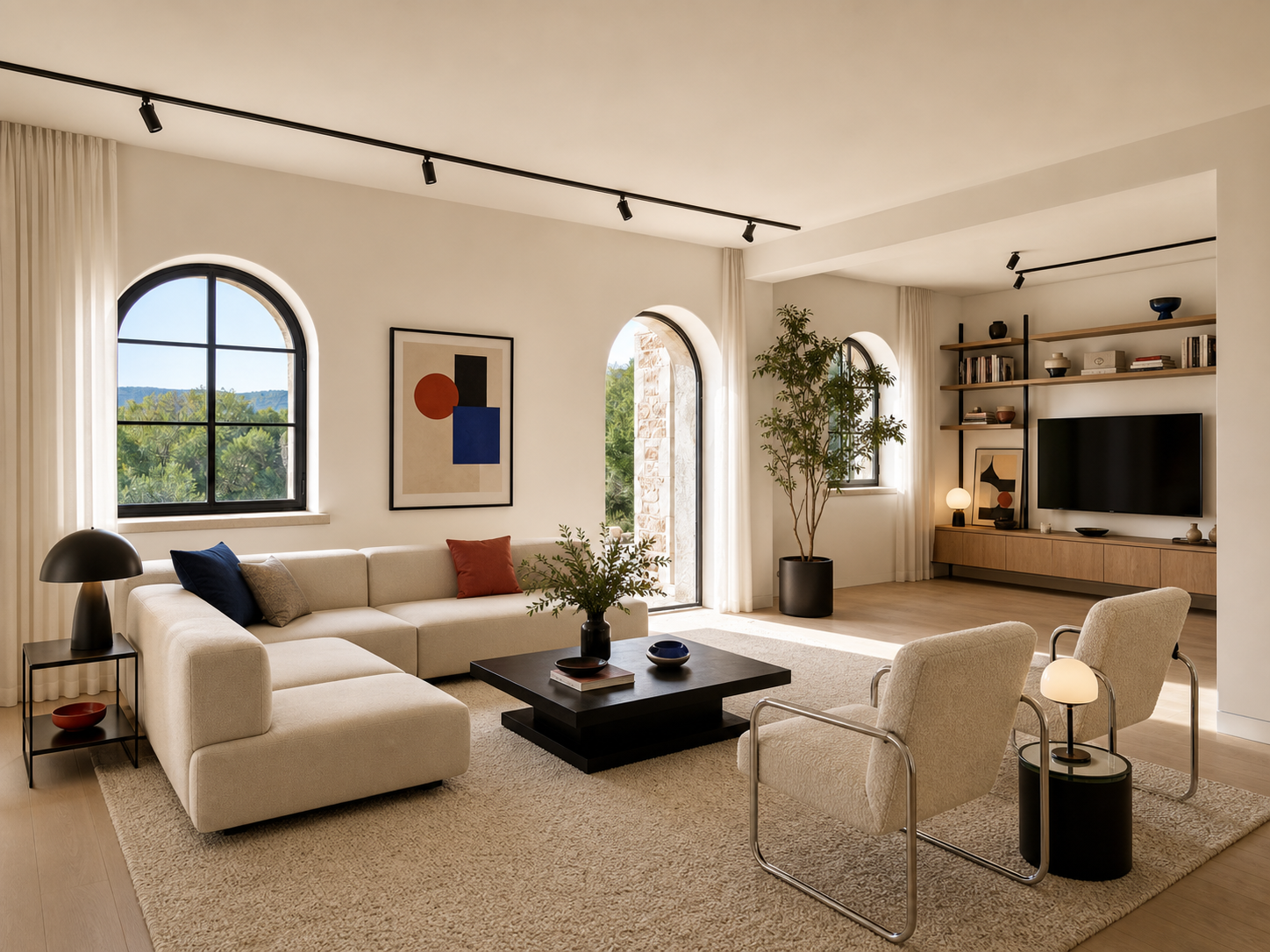
Short answerVirtual Staging uses one unfinished-room photo as the structural base and one style reference as visual direction, then generates a furnished interior render without requiring a 3D model.
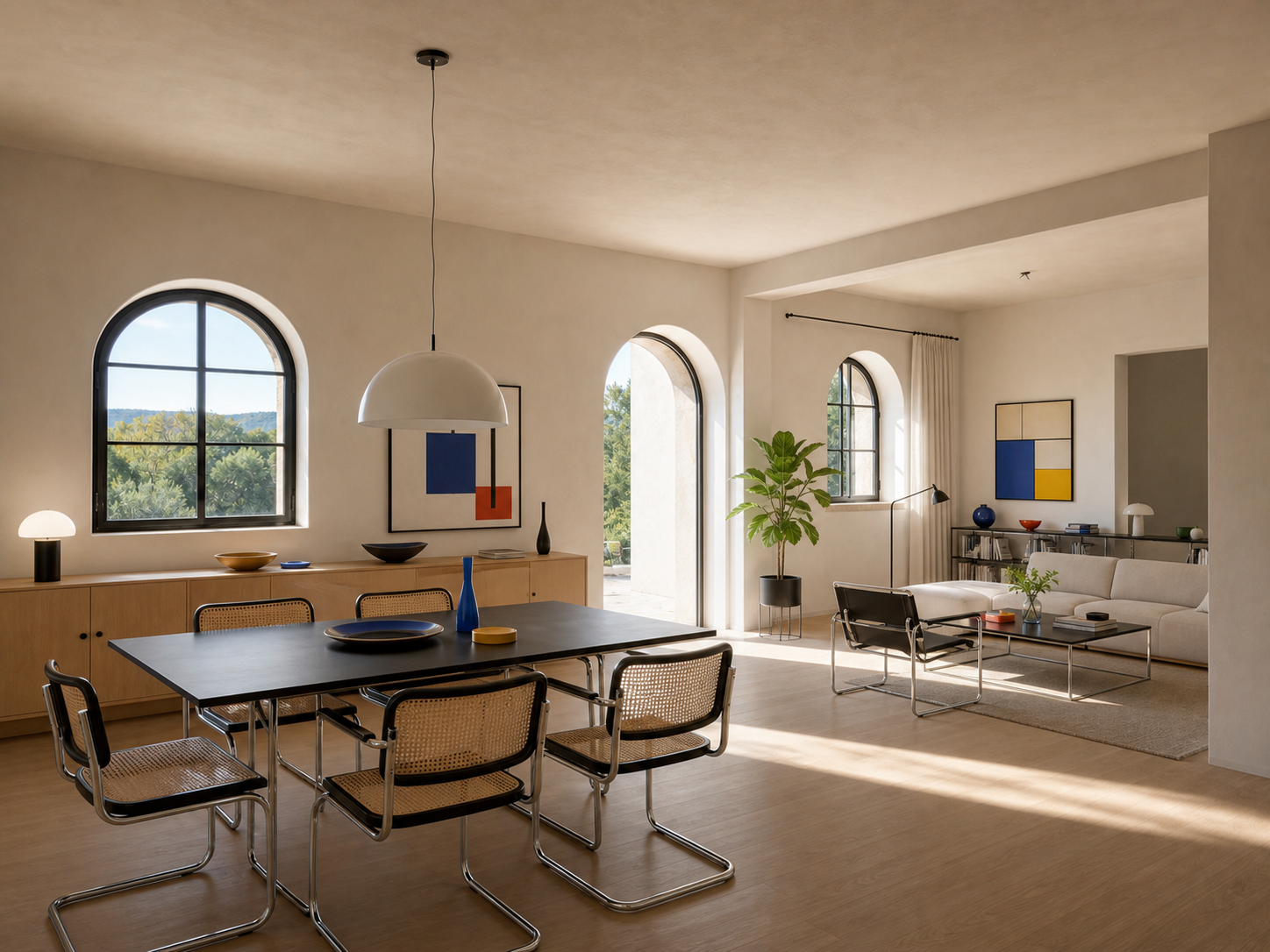
Lovspark Virtual Staging turns a photo of an unfinished, empty, or unfurnished room into a high-quality interior design render.
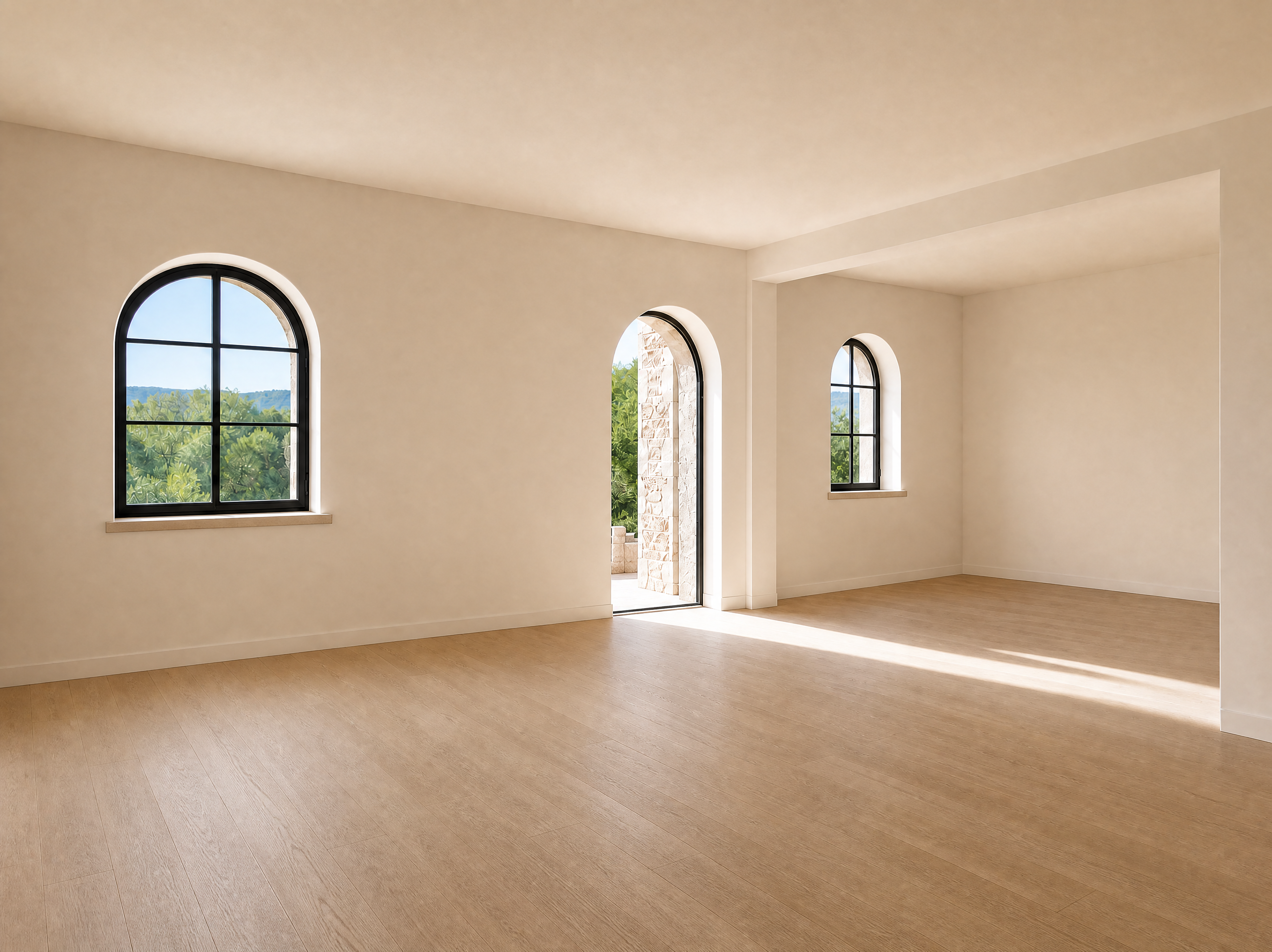
Use it to explore renovation directions directly from a site photo. Add one style reference and Lovspark transfers its color, material, furniture language, and spatial atmosphere into the original bare-shell image.
Unlike generating a new room from scratch, Virtual Staging works around the openings, walls, viewpoint, and main spatial relationships in the input photo. That makes before-and-after comparison immediate and useful for concept design, site conversations, and client proposals.

| Base input | 1 clear unfinished-room or empty-room photo |
|---|---|
| Style direction | 1 interior style reference image |
| Output | A furnished interior render with materials and lighting |
| Preserves | Openings, walls, viewpoint, and main spatial relationships |
| Best for | Concept design, site discussions, and client proposals |
- Photos of unfinished or partially completed interiors
- Empty rooms with finished surfaces but no furniture
- Residential or commercial spaces that need a new styling direction
“Transform raw spaces into styled interior design renders with structure preserved.”
— Lovspark official product page
Author, sources, and freshness: The Lovspark Product Team prepared this guide from the official product page and the production interface shown above. Last updated .
What is included in the Virtual Staging panel?
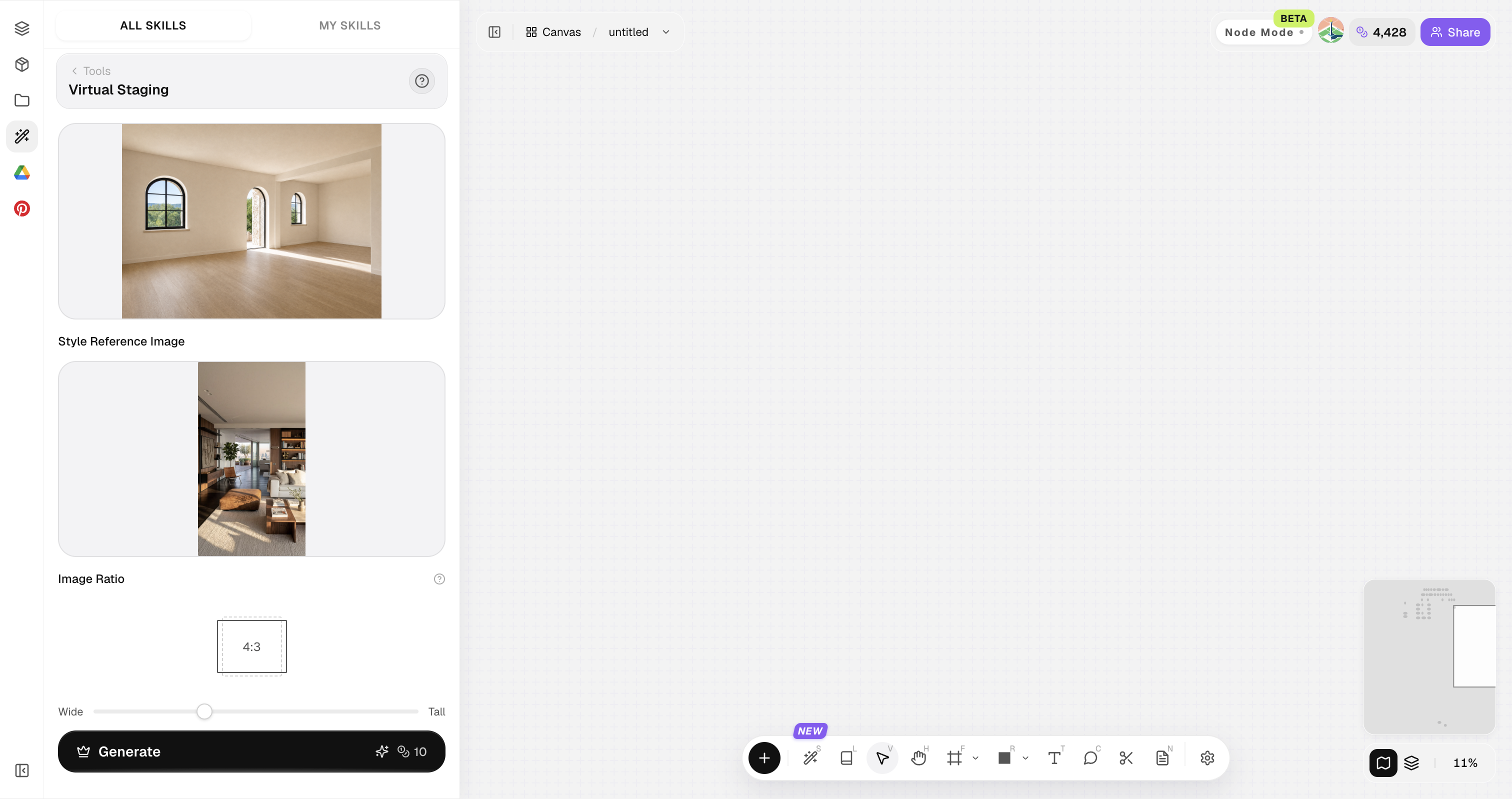
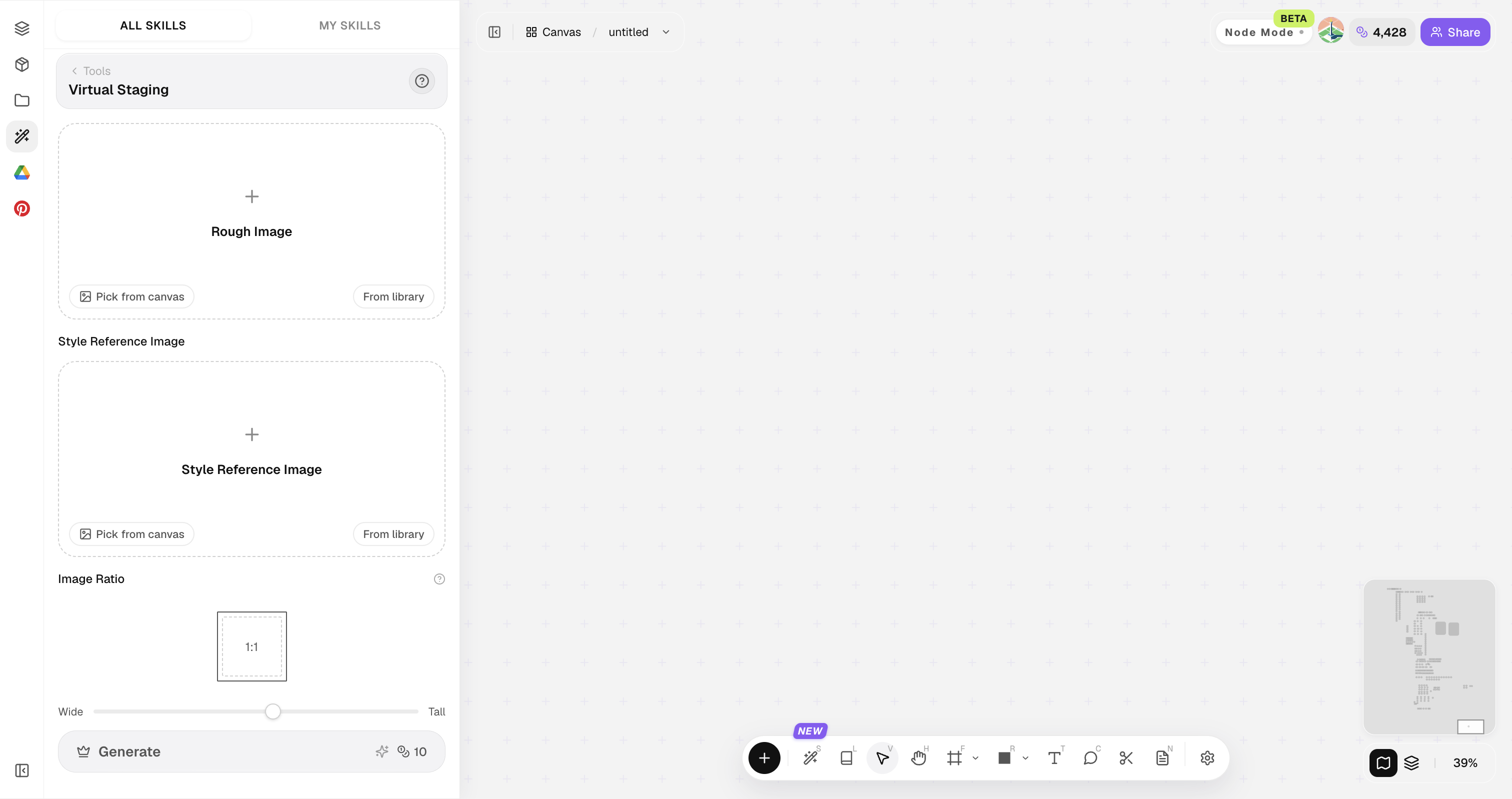
Open the Skills library and choose Virtual Staging. The panel follows a clear sequence: add the original image, add a style reference, set the image ratio, then click Generate. Both images can be uploaded locally or selected directly from the library or canvas.
Complete the panel from top to bottom: Original image → Style Reference Image → Image Ratio → Generate. A clear source image helps Lovspark understand which room to redesign.
How do you turn an empty-room photo into a render?
Follow these four steps to turn a site photo into a complete interior image for design communication.
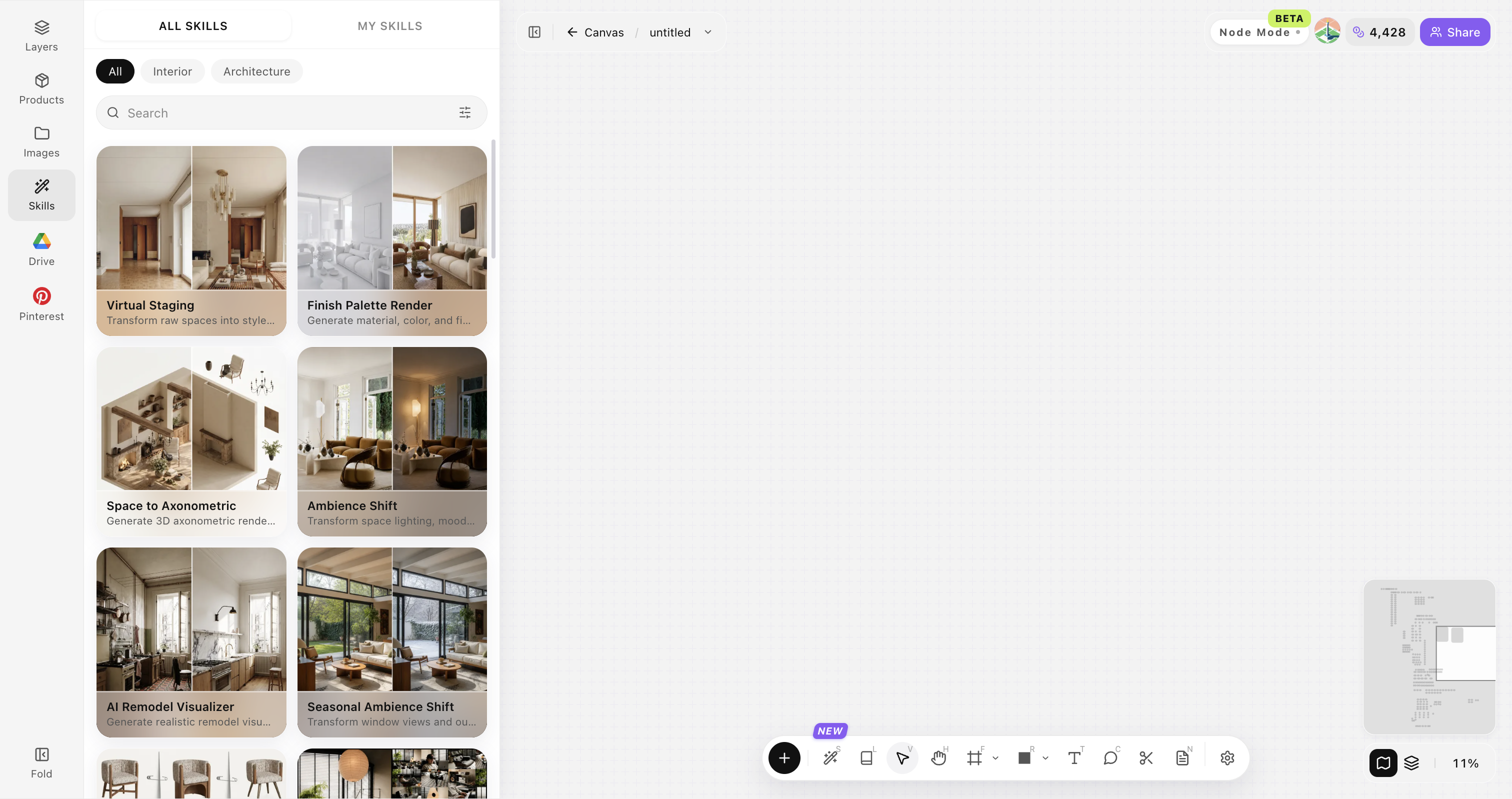
Open Skills library and choose Virtual Staging
Open Skills library, then choose Virtual Staging from the skill list to start this workflow.


Upload your original room image
Upload, paste, or drag in a clear photo with a complete viewpoint and visible walls, floors, windows, and doors. It becomes the spatial base for the generation.

Add a style reference image
Upload an interior inspiration image or design case. A strong reference gives the AI clearer visual guidance for color, materials, furniture language, and atmosphere.

Generate and compare directions
Choose the image ratio, click Generate, and the results appear directly on the canvas. Compare the original space with multiple design directions, then continue refining the strongest option.


How to get better AI interior design results
Better Virtual Staging results depend on two things: a structurally clear source photo and a reference image with readable materials, lighting, and style. Start with strong inputs, then generate several directions and compare them side by side.
Start with a structurally clear image
Avoid severe wide-angle distortion, heavy obstruction, or very dark photos. Clear wall, floor, door, and window boundaries produce more stable spatial relationships.
Use a reference with clear materials and light
Choose an image where wood, stone, fabric, metal, and natural-light relationships are easy to read so Lovspark can follow the design language more accurately.
Use one strong style reference
Choose an image with a similar room type and clear material relationships. It helps Lovspark understand the design language you want.
Generate multiple directions
Do not stop at the first result. Compare options side by side and continue refining the strongest direction.
Keep fixed structures clearly visible
If columns, windows, stairs, beams, or built-in cabinetry must stay, use a bare-shell image that shows them fully without cropping or obstruction.
What are the most common Virtual Staging questions?
Virtual Staging does not require a 3D model: one clear room photo and one style reference are enough to generate a direction. Use the output for concepts and design communication, then verify final construction decisions with professional drawings and dimensions.
What is Virtual Staging?+
Virtual Staging turns a photo of an unfinished, empty, or unfurnished room into a complete interior design render. Lovspark identifies openings, walls, viewpoint, and spatial relationships before adding furniture, materials, lighting, and decor.
Can I create a render without a 3D model?+
Yes. Start with one clear unfinished-room or empty-room photo. You do not need to build a 3D model or install professional rendering software.
Will the AI change the original room structure?+
Lovspark uses the original openings, walls, viewpoint, and main spatial relationships as the basis for each direction while exploring furniture, materials, and style.
What does a style reference image do?+
It gives the AI a visual guide for materials, colors, furniture language, and atmosphere, helping the result match your design intent.
Can I use the renders in a client proposal?+
Yes, they are useful for concept presentations, early proposals, and design-direction discussions. Detailed construction and dimensional checks should still use professional drawings and design judgment.