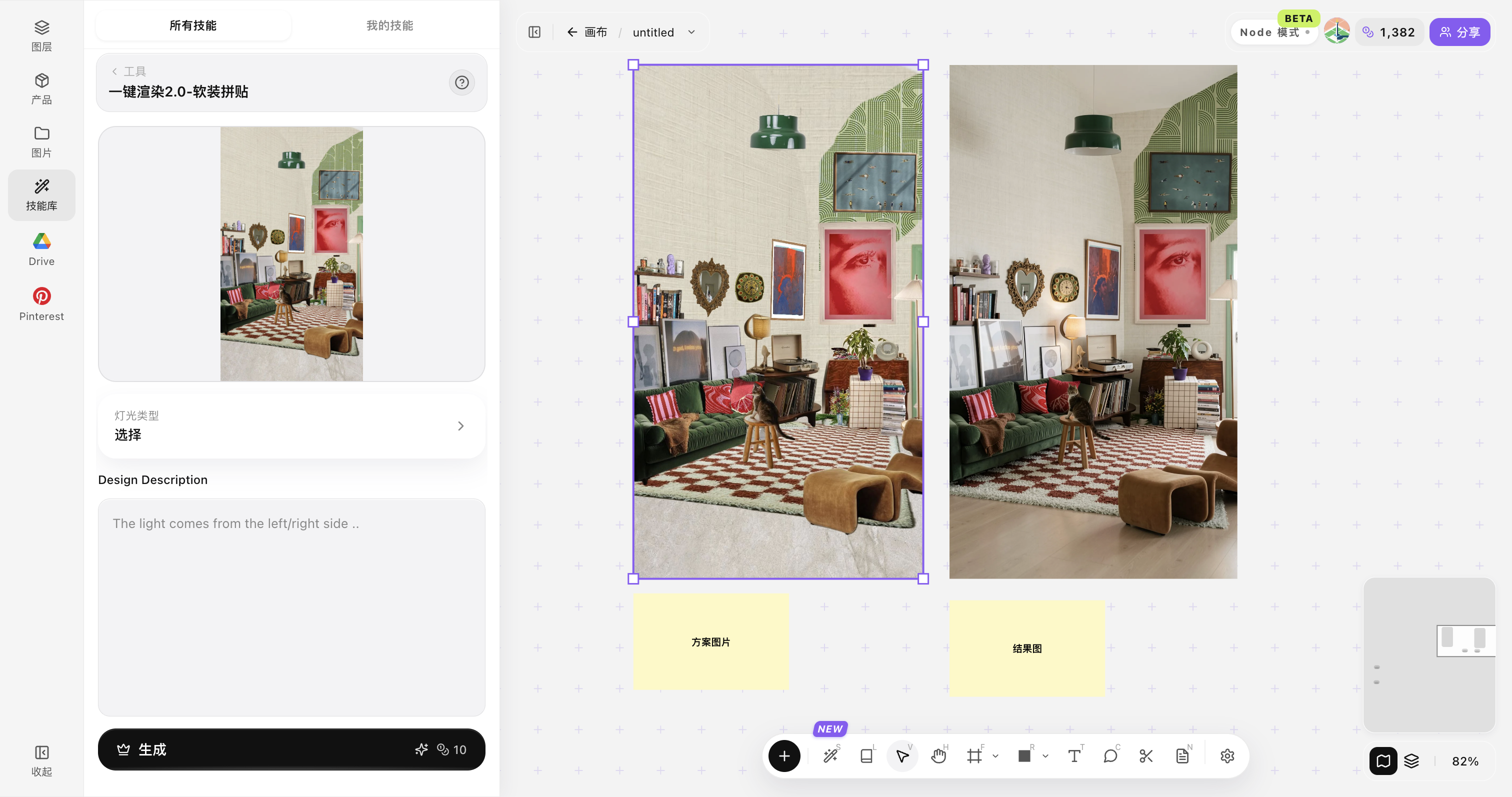
What is One-Click Render 2.0 — Soft Furnishing Collage?
In shortOne-Click Render 2.0 — Soft Furnishing Collage is a Lovspark skill for turning a clear source image and an optional reference into a focused design direction on the canvas.
One-Click Render 2.0 — Soft Furnishing Collage helps designers move from an input image to a clear visual direction with a short, repeatable workflow.
Open the Skills library, select the skill, and add a clear original image. Use a reference image whenever a material, style, or product direction should be explicit.
The generated result appears on the canvas, where it can be compared with alternatives and refined for design communication.
| Input | 1 clear original image |
|---|---|
| Style reference | Optional reference image |
| Output | A focused AI-generated design direction |
| Preserves | The key context and visual logic of the source |
| Best for | Fast exploration and design communication |
- Clear images with readable subjects and structure
- Reference images with a defined design direction
- Views that show the area to be refined
“Start from a clear image, define the direction, and iterate on the canvas.”
— Lovspark
Updated by the Lovspark Product Team, based on the live product and real project examples.
What does the One-Click Render 2.0 — Soft Furnishing Collage panel include?
Open Skills library and choose One-Click Render 2.0 — Soft Furnishing Collage. The panel provides the original image, style reference, image ratio, and Generate button.
Use a clear original image to establish the target subject and composition. Add a reference image when a more specific visual direction is needed.
How do you use One-Click Render 2.0 — Soft Furnishing Collage?
Follow four short steps from a source image to a canvas-ready result.
Open Skills library and choose One-Click Render 2.0 — Soft Furnishing Collage
Open Skills library, then choose One-Click Render 2.0 — Soft Furnishing Collage from the skill list to start this workflow.
Upload your original image
Upload, paste, or drag in a clear original image. It becomes the base for this generation.
Add a style or target reference
Add a reference image when you need a more specific visual direction.
Generate and compare results
Click Generate and the results appear directly on the canvas. Compare the directions there, then continue refining the strongest option.
Tips for better One-Click Render 2.0 — Soft Furnishing Collage results
Use clear source images and references with a specific, readable visual goal.
Start with a clear original image
Keep the key subject, structure, and viewpoint visible.
Use a focused reference
Choose one image that clearly communicates the desired direction.
Keep the target in frame
Avoid cropping out the area you need to generate or refine.
Compare more than one direction
Use the canvas to review options before committing to one.
Refine from the strongest result
Continue with the output that best preserves the intended design logic.
One-Click Render 2.0 — Soft Furnishing Collage FAQ
The placeholder images in this early guide will be replaced by the official production image set when it is available.
What is One-Click Render 2.0 — Soft Furnishing Collage?+
One-Click Render 2.0 — Soft Furnishing Collage is a Lovspark skill for focused AI-assisted design exploration from an original image.
Do I need a 3D model?+
No. Start with a clear image and add a reference when required.
Where do results appear?+
Generated results appear on the Lovspark canvas for comparison and refinement.
Can I use a reference image?+
Yes. A reference helps define style, materials, or the desired visual direction.
Are the images final?+
No. This guide currently uses local placeholders until official skill imagery is supplied.